> ## Documentation Index
> Fetch the complete documentation index at: https://docs.niobi.co/llms.txt
> Use this file to discover all available pages before exploring further.
# Sub-Merchant Management
> Learn how to add and manage Sub-Merchants for your Niobi integration.
## Who is this feature for?
This feature is for platforms, marketplaces, PSPs, and merchants that need to onboard and manage multiple Sub-Merchants (Sub-Merchant) under a single Niobi account. Typical users:
* Marketplaces that settle funds to individual vendors
* Payment service providers integrating multiple merchants
* Enterprises managing separate merchant accounts for reporting or compliance
## Adding a Sub-Merchant
To add a Sub-Merchant via the Niobi portal:
1. Log in to your Niobi dashboard.
2. Navigate to Workspace > Sub-Merchant.
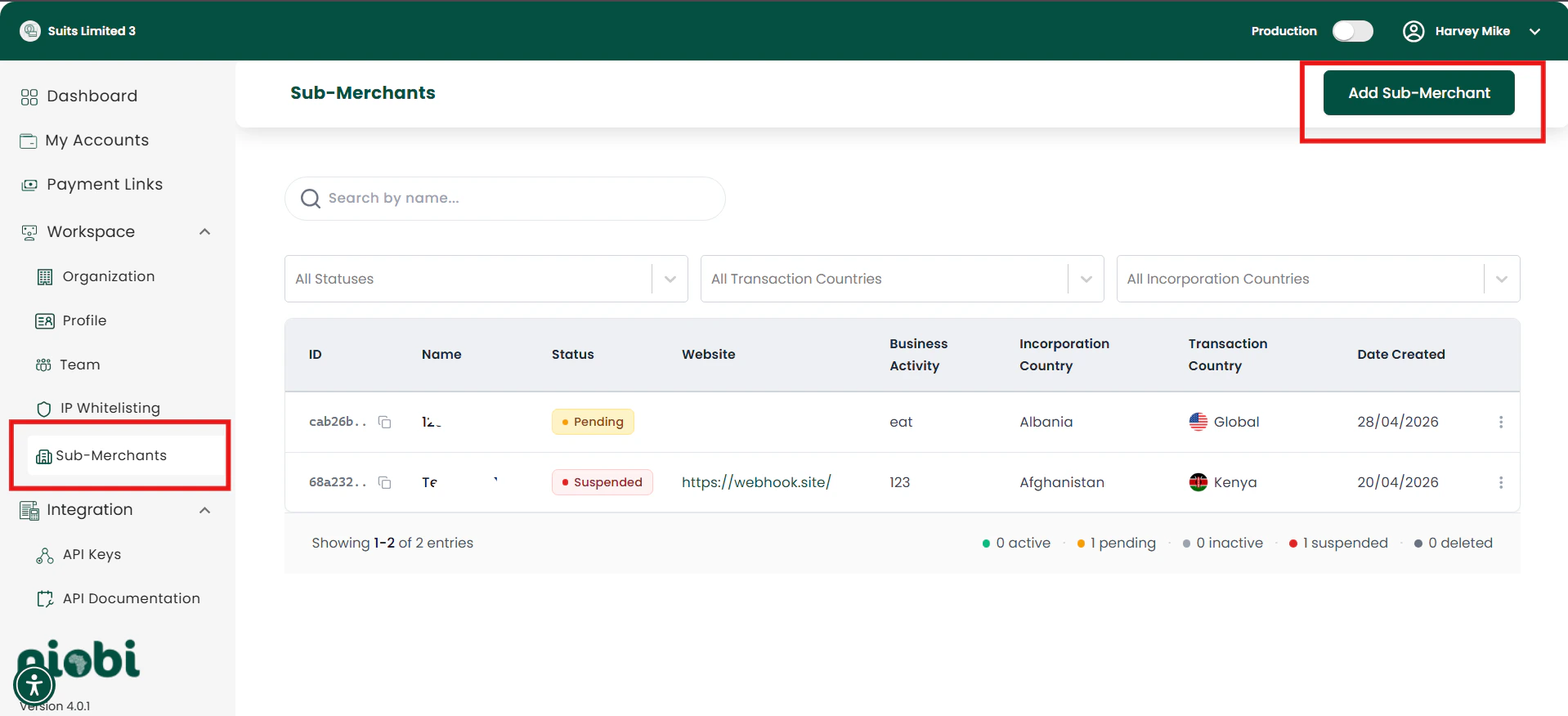 3. Click "Add New Sub-Merchant".
4. Complete the form with the Sub-Merchant's business and contact details:
* Sub-Merchant name
* Business activity and website
* Incoorporation and transaction country
3. Click "Add New Sub-Merchant".
4. Complete the form with the Sub-Merchant's business and contact details:
* Sub-Merchant name
* Business activity and website
* Incoorporation and transaction country
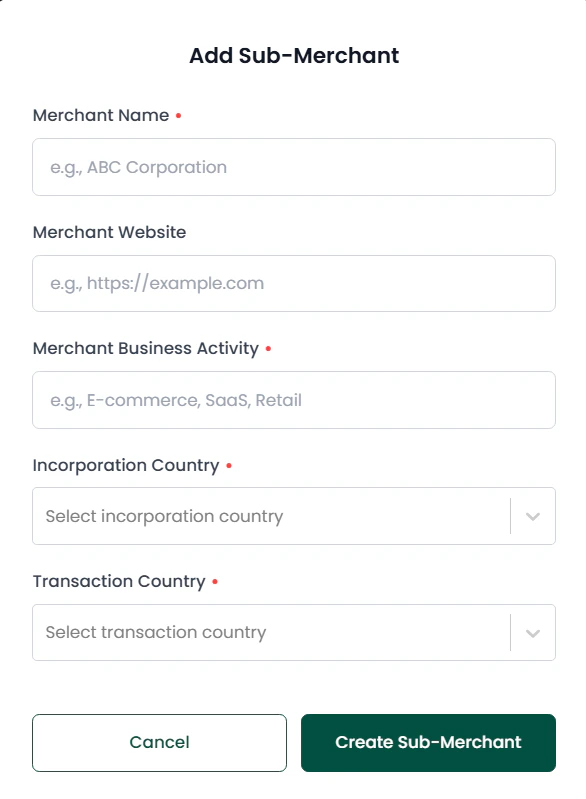 5. Submit the form.
After submission the Sub-Merchant will be created in **Pending** status and will enter the review workflow (see Approval and review process).
## Approval and review process
All newly created Sub-Merchants enter a review workflow before they can process live transactions.
* Status: **Pending** — The Sub-Merchant has been created and awaits review by the compliance team.
* Status: **Approved** — The Sub-Merchant passed review and can process transactions.
* Status: **Suspended** — The Sub-Merchant has been blocked due to compliance issues, suspicious activity, or policy violations. Suspended Sub-Merchants cannot process live transactions. Contact [support@niobi.co](mailto:support@niobi.co) to understand the reason and appeal if applicable.
Review steps:
1. Submit required business and KYC documents via the Niobi portal.
2. Niobi performs identity and risk checks.
3. Manual or automated approval is applied; the account moves to **Approved** or **Suspended**.
## How to get and use the Sub-Merchant ID in API calls
Where to find the ID:
* After creating a Sub-Merchant in the Niobi portal, the dashboard lists the `sub_merchant_id` in the Sub-Merchant list.
5. Submit the form.
After submission the Sub-Merchant will be created in **Pending** status and will enter the review workflow (see Approval and review process).
## Approval and review process
All newly created Sub-Merchants enter a review workflow before they can process live transactions.
* Status: **Pending** — The Sub-Merchant has been created and awaits review by the compliance team.
* Status: **Approved** — The Sub-Merchant passed review and can process transactions.
* Status: **Suspended** — The Sub-Merchant has been blocked due to compliance issues, suspicious activity, or policy violations. Suspended Sub-Merchants cannot process live transactions. Contact [support@niobi.co](mailto:support@niobi.co) to understand the reason and appeal if applicable.
Review steps:
1. Submit required business and KYC documents via the Niobi portal.
2. Niobi performs identity and risk checks.
3. Manual or automated approval is applied; the account moves to **Approved** or **Suspended**.
## How to get and use the Sub-Merchant ID in API calls
Where to find the ID:
* After creating a Sub-Merchant in the Niobi portal, the dashboard lists the `sub_merchant_id` in the Sub-Merchant list.
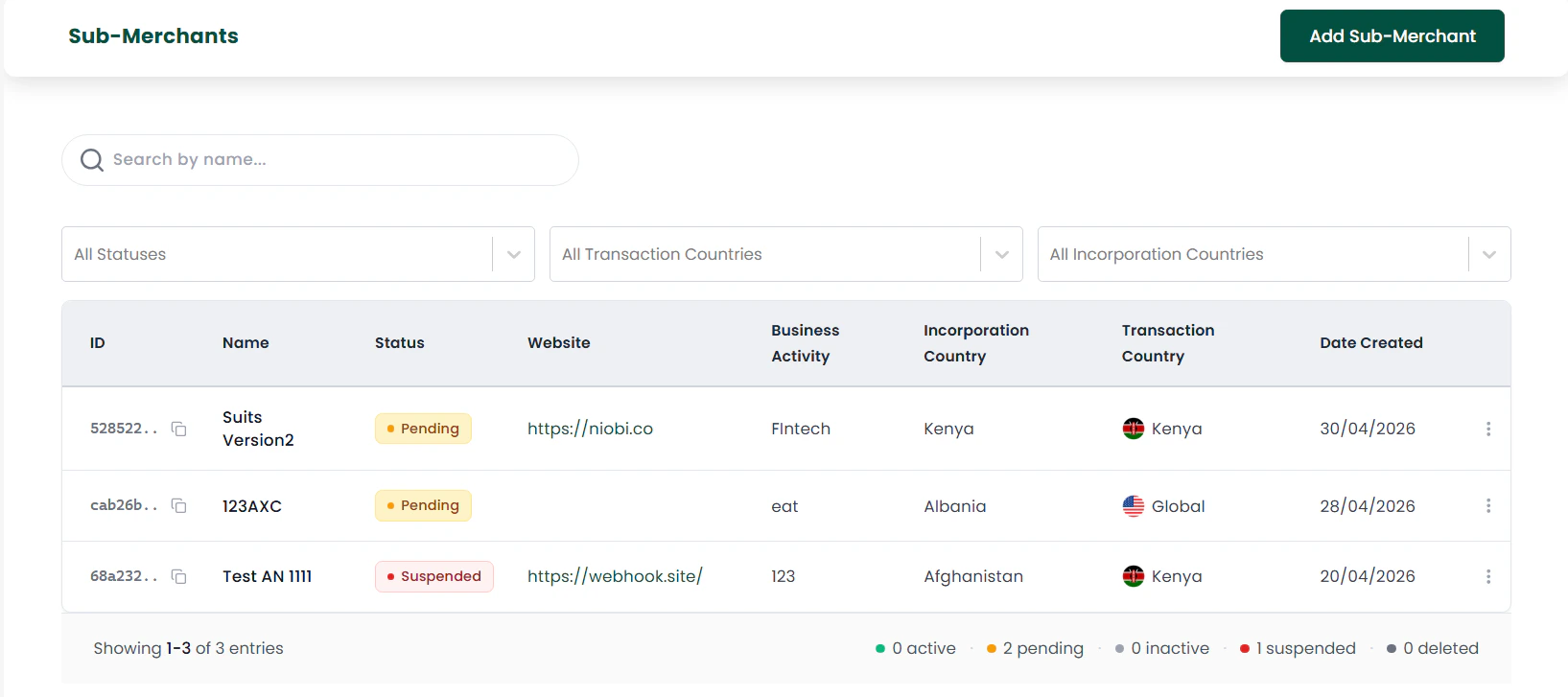 Include the `sub_merchant_id` in your payment payload to associate transactions.
Sample Deposit request:
```json theme={null}
{
"client_id": "",
"params": {
"amount": "10",
"callback_url": "https://webhook.site/",
"country_id": "1",
"currency": "KES",
"mobile": "2547xxxxxxx",
"name": "Test Customer",
"payment_method_type": "send money",
"sub_merchant_id": "4resa-xxxx-xxxx-xxxx-vb67",
"third_party_reference_1": "REF-123"
},
"salt": "",
"sender": "Sandbox",
"timestamp": 1620000000,
"signature": ""
}
```
| Variable | Description |
| ----------------- | ----------------------------------------------- |
| `client_id` | Your integration `client_id` provided by Niobi |
| `sub_merchant_id` | The unique identifier for the Sub-Merchant |
| `callback_url` | URL to receive asynchronous notifications |
| `amount` | Transaction amount |
| `currency` | Currency code (e.g., KES) |
| `timestamp` | Unix timestamp used when creating the signature |
| `signature` | HMAC signature for request validation |
## How to test?
1. Create a test Sub-Merchant in the Niobi portal under sandbox mode.
2. Retrieve the `sub_merchant_id` from the Sub-Merchant list.
3. Make a sandbox deposit or payout request including `sub_merchant_id` (use the sample request above).
4. Verify the transaction shows the Sub-Merchant in the dashboard and webhooks.
## Sub-Merchant State Changes
* Pending: Wait for approval. Do not send live transactions.
* Approved: Proceed with live transactions and reporting.
* Suspended: The Sub-Merchant is blocked. No live transactions can be processed. Contact [support@niobi.co](mailto:support@niobi.co) to understand the reason and request reinstatement.
## Support
If you need assistance with Sub-Merchant management, contact our support team at [support@niobi.co](mailto:support@niobi.co).
Include the `sub_merchant_id` in your payment payload to associate transactions.
Sample Deposit request:
```json theme={null}
{
"client_id": "",
"params": {
"amount": "10",
"callback_url": "https://webhook.site/",
"country_id": "1",
"currency": "KES",
"mobile": "2547xxxxxxx",
"name": "Test Customer",
"payment_method_type": "send money",
"sub_merchant_id": "4resa-xxxx-xxxx-xxxx-vb67",
"third_party_reference_1": "REF-123"
},
"salt": "",
"sender": "Sandbox",
"timestamp": 1620000000,
"signature": ""
}
```
| Variable | Description |
| ----------------- | ----------------------------------------------- |
| `client_id` | Your integration `client_id` provided by Niobi |
| `sub_merchant_id` | The unique identifier for the Sub-Merchant |
| `callback_url` | URL to receive asynchronous notifications |
| `amount` | Transaction amount |
| `currency` | Currency code (e.g., KES) |
| `timestamp` | Unix timestamp used when creating the signature |
| `signature` | HMAC signature for request validation |
## How to test?
1. Create a test Sub-Merchant in the Niobi portal under sandbox mode.
2. Retrieve the `sub_merchant_id` from the Sub-Merchant list.
3. Make a sandbox deposit or payout request including `sub_merchant_id` (use the sample request above).
4. Verify the transaction shows the Sub-Merchant in the dashboard and webhooks.
## Sub-Merchant State Changes
* Pending: Wait for approval. Do not send live transactions.
* Approved: Proceed with live transactions and reporting.
* Suspended: The Sub-Merchant is blocked. No live transactions can be processed. Contact [support@niobi.co](mailto:support@niobi.co) to understand the reason and request reinstatement.
## Support
If you need assistance with Sub-Merchant management, contact our support team at [support@niobi.co](mailto:support@niobi.co).