> ## Documentation Index
> Fetch the complete documentation index at: https://docs.niobi.co/llms.txt
> Use this file to discover all available pages before exploring further.
# Sub-Merchant Management
> Learn how to onboard and manage sub-merchants for multi-vendor marketplaces, platforms, and aggregators using the Niobi Dashboard.
## Overview
Sub-Merchant Management allows platforms, marketplaces, aggregators, and payment service providers (PSPs) to onboard and manage distinct merchant entities under a single master Niobi account.
### Common Use Cases:
* **Online Marketplaces:** Attribute and settle transactions to specific vendors.
* **Payment Facilitators & PSPs:** Onboard individual businesses under a single master integration.
* **Multi-Brand Enterprises:** Segregate reporting, audits, and compliance tracking across regional business units.
***
## Sub-Merchant Onboarding Fields
When onboarding a sub-merchant in the Niobi Dashboard, provide the following information:
| Form Field | Identifier | Requirement | Description | Example |
| :------------------------ | :---------------------- | :----------: | :--------------------------------------------------------------- | :------------------------- |
| **Legal Name** | `legal_name` | **Required** | The registered legal corporate name of the sub-merchant entity. | `ABC Corporation Ltd` |
| **Brand Name** | `brand_name` | Optional | The trading or consumer-facing brand name. | `ABC Corp` |
| **License Type** | `license_type` | **Required** | The regulatory or operational license type held by the business. | `Money Transfer License` |
| **License Jurisdiction** | `license_jurisdiction` | **Required** | The regulatory authority or territory that issued the license. | `Central Bank of Kenya` |
| **Website** | `website` | **Required** | The sub-merchant's official corporate or e-commerce URL. | `https://example.com` |
| **Business Activity** | `business_activity` | **Required** | The primary industry category or business model. | `E-commerce, SaaS, Retail` |
| **Incorporation Country** | `incorporation_country` | **Required** | The country where the entity was legally incorporated. | `Kenya` |
| **Transaction Country** | `transaction_country` | **Required** | The country where the sub-merchant will process payments. | `1` (Kenya) |
**Compliance Verification:**\
Please ensure all onboarded sub-merchants align with Niobi's compliance policies. Once submitted, new sub-merchants enter a compliance review workflow before processing live transactions.
***
## Adding a Sub-Merchant via Dashboard
To onboard a new sub-merchant:
1. Log in to your [Niobi Dashboard](https://users.niobi.co).
2. Navigate to **Workspace -> Sub-Merchant**.
3. Click the **Add New Sub-Merchant** button.
4. Complete the required corporate, licensing, and transaction country details.
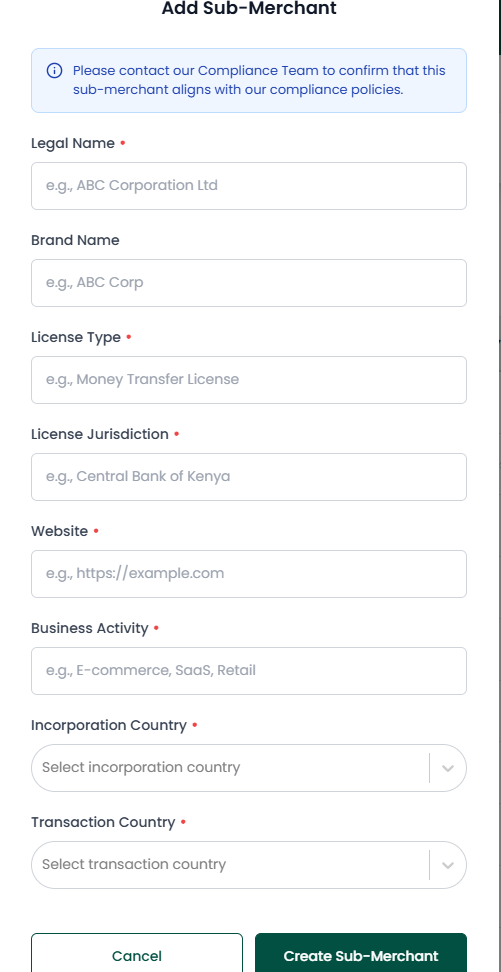 5. Click **Create Sub-Merchant** to submit the entity for compliance review.
6. Once created, the sub-merchant will appear in your **Sub-Merchant List** with its assigned unique UUID (`sub_merchant_id`).
***
## Linking Sub-Merchants to Payments & Collections
Once a sub-merchant is created, obtain their unique `id` (UUID format, e.g. `3fa85f64-5717-4562-b3fc-2c963f66afa6`) from the dashboard list.
Pass this UUID in the `sub_merchant_id` field inside `params` when initiating collections or disbursements:
### Sample Collection Request with `sub_merchant_id`
```json theme={null}
{
"client_id": "YOUR_CLIENT_ID",
"sender": "YOUR_INTEGRATION_NAME",
"timestamp": 1724835600,
"salt": "random_salt_12345",
"signature": "c6b98e1f5d6a7890bc4e123456789abcdef0123456789abcdef0123456789abc",
"params": {
"amount": 10000,
"currency": "KES",
"country_id": 1,
"mobile": "254700000000",
"payment_method_type": "send money",
"sub_merchant_id": "3fa85f64-5717-4562-b3fc-2c963f66afa6",
"callback_url": "https://yourdomain.com/niobi/callback",
"third_party_reference_1": "ORDER-9912",
"third_party_reference_2": "CUST-450"
}
}
```
**Include in Signature Calculation:**\
Because `sub_merchant_id` is inside the `params` object, ensure it is included in your pre-signature object when generating the SHA-256 signature.
***
## Sub-Merchant Approval & Lifecycle Statuses
The `status` field on a sub-merchant record tells you whether it can process live transactions:
| Status | Live Transactions | Description |
| :------------- | :---------------: | :-------------------------------------------------------------------------------------------------------------------- |
| **`Inreview`** | No | The sub-merchant has been submitted and is under compliance verification. Test transactions in sandbox are supported. |
| **`Active`** | **Yes** | Verification is complete. The sub-merchant can process live collections and disbursements. |
| **`Inactive`** | No | The sub-merchant is not currently active. Live transactions are rejected. |
***
## Support & Inquiries
For questions regarding sub-merchant compliance, onboarding thresholds, or documentation requirements, reach out to our team at [support@niobi.co](mailto:support@niobi.co).
5. Click **Create Sub-Merchant** to submit the entity for compliance review.
6. Once created, the sub-merchant will appear in your **Sub-Merchant List** with its assigned unique UUID (`sub_merchant_id`).
***
## Linking Sub-Merchants to Payments & Collections
Once a sub-merchant is created, obtain their unique `id` (UUID format, e.g. `3fa85f64-5717-4562-b3fc-2c963f66afa6`) from the dashboard list.
Pass this UUID in the `sub_merchant_id` field inside `params` when initiating collections or disbursements:
### Sample Collection Request with `sub_merchant_id`
```json theme={null}
{
"client_id": "YOUR_CLIENT_ID",
"sender": "YOUR_INTEGRATION_NAME",
"timestamp": 1724835600,
"salt": "random_salt_12345",
"signature": "c6b98e1f5d6a7890bc4e123456789abcdef0123456789abcdef0123456789abc",
"params": {
"amount": 10000,
"currency": "KES",
"country_id": 1,
"mobile": "254700000000",
"payment_method_type": "send money",
"sub_merchant_id": "3fa85f64-5717-4562-b3fc-2c963f66afa6",
"callback_url": "https://yourdomain.com/niobi/callback",
"third_party_reference_1": "ORDER-9912",
"third_party_reference_2": "CUST-450"
}
}
```
**Include in Signature Calculation:**\
Because `sub_merchant_id` is inside the `params` object, ensure it is included in your pre-signature object when generating the SHA-256 signature.
***
## Sub-Merchant Approval & Lifecycle Statuses
The `status` field on a sub-merchant record tells you whether it can process live transactions:
| Status | Live Transactions | Description |
| :------------- | :---------------: | :-------------------------------------------------------------------------------------------------------------------- |
| **`Inreview`** | No | The sub-merchant has been submitted and is under compliance verification. Test transactions in sandbox are supported. |
| **`Active`** | **Yes** | Verification is complete. The sub-merchant can process live collections and disbursements. |
| **`Inactive`** | No | The sub-merchant is not currently active. Live transactions are rejected. |
***
## Support & Inquiries
For questions regarding sub-merchant compliance, onboarding thresholds, or documentation requirements, reach out to our team at [support@niobi.co](mailto:support@niobi.co).