Comprehensive guide to supported collection methods across Africa: Mobile Money USSD push, OTP verification, Bank Transfers, Virtual Accounts, and Redirect flows.
Niobi supports diverse payment collection channels across Africa. Depending on the destination country, your application can collect funds via Mobile Money, Dynamic Virtual Accounts, Bank Transfers, or Browser Redirects.
For Nigerian collections, Niobi provides dynamic virtual bank accounts that expire within 30 minutes.
Send Exact Amounts:
For NGN virtual account deposits, the expected amount is processed and any overpayment is automatically reversed to the customer upon successful deposit. Always instruct customers to transfer the exact amount.
Initial API Response (Returns Virtual Account Details):
{ "success": true, "message": "Please use the following bank details for making a deposit via your preferred banking application", "data": { "account_name": "Joseph Mike", "account_number": "7500123497", "bank_name": "78 FINANCE COMPANY LIMITED", "amount": 10000, "currency": "NGN", "country_id": 17, "mobile": "2348012345678", "depositId": "NIO-S12345678", "status": "success", "payment_step": 1, "callback_url": "https://yourdomain.com/niobi/callback" }, "status_code": "000000"}
Display the returned account_number and bank_name to your customer to complete their transfer. See the Nigeria Country Guide for full details.
South African collections support both generic bank transfers (EFT) and direct Capitec authorization. There is no "eft" value, EFT collections use payment_method_type: "bank_eft", shown below.
Bank EFT (South Africa)
Capitec Collections (South Africa)
payment_method_type: "bank_eft"
Returns an authorization_url where the customer approves the payment directly with their bank (ABSA, FNB, Standard Bank, Nedbank, Investec, Bidvest, TymeBank).
Initial Response: Returns "authorization_url": "https://..." and "payment_step": 1. Redirect the customer to this URL.
payment_method_type: "capitec"
Capitec Bank collections authenticate directly against the payer’s national identity. You must pass the customer’s full 13-digit South African ID number in params.id_number (e.g. "9001015800083") for the request to be valid.
Wave uses a redirect-based authorization flow, not a USSD push:
1
1. Initiate the collection
Submit the request with successful_url and failure_url included in the parameters.
2
2. Redirect the customer to authorize
Niobi returns an authorization_url (payment_step: 1). Redirect the customer to this URL. If they open it on their phone, it launches the Wave app directly to approve payment; if they open it on a desktop browser, the page displays a QR code they can scan with the Wave app on their phone to authorize instead.
Opening the authorization_url in a desktop browser: the customer scans the QR code with the Wave app to pay.
Opening the authorization_url on a phone: the Wave app opens directly to confirm the payment.
3
3. Redirect on completion
Once the customer approves or cancels the payment in Wave, they’re redirected to your successful_url or failure_url accordingly, and Niobi delivers the terminal webhook callback (payment_step: 2) to your callback_url.
If you want to accept payments without building and maintaining a custom front-end payment interface, Niobi provides Payment Links (Hosted Checkout).This is the fastest and easiest way to start collecting payments across Africa with zero UI code required on your part. For full architectural walkthroughs, dashboard setup, and API parameters, see the Payment Links Guide.
Zero Front-End Engineering: You do not need to build complex payment forms, input masks, or error-handling UI. Niobi hosts the entire checkout experience for you.
Multi-Currency & Country Support: Payer details, country selection, and currency conversions are handled automatically on the page.
Flexible Distribution: Share links over WhatsApp, SMS, invoices, emails, or redirect customers directly from your website or mobile app checkout button.
Instant Reconciliation: When a payment is completed on the hosted checkout page, Niobi dispatches an asynchronous webhook callback to your server and credits your merchant wallet in real time.
Dashboard (No-Code): Log into your Niobi Dashboard, navigate to Payments -> Payment Links, click Create Payment Link, enter your item name, currency, and amount (fixed or customer-entered), and copy your generated checkout URL immediately.
API (Programmatic): Dynamically generate payment links on demand from your backend server using the Create Payment Link API (POST /api/v3/payment-link-api/create). You can retrieve, search, and manage active links via the Payment Link List API (GET /api/payment-link-api/list). Pass first_name, last_name, email, and phone in the request to pre-fill the payer’s details on the checkout page, see Create Payment Link for details.
2
2. Share the Link or Redirect the Payer
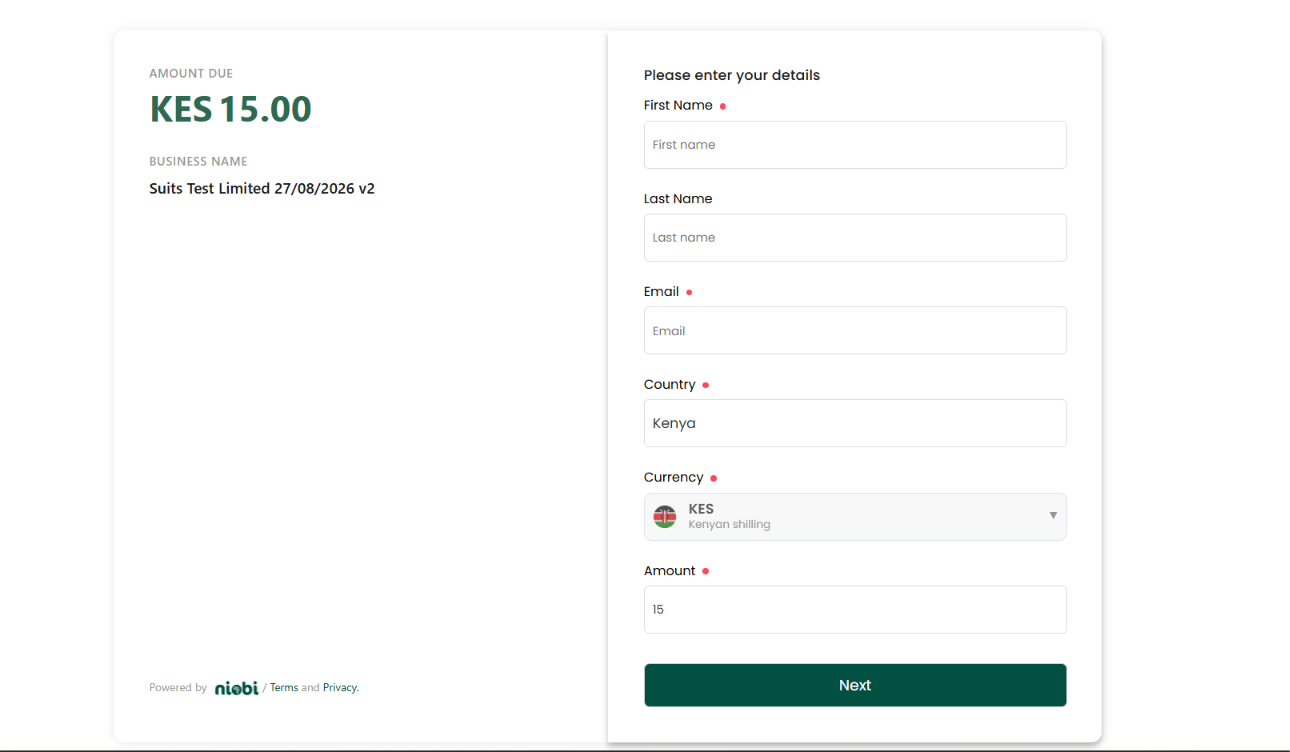
Provide the generated checkout URL to your customer. When clicked, the customer is presented with the clean, branded Niobi checkout interface shown above.
3
3. Customer Completes Payment
The customer confirms their name, email, country, and currency (pre-filled automatically if you supplied them at creation), then chooses their preferred local payment channel (Mobile Money, Bank Transfer, or Card) to complete authorization.
4
4. Real-Time Webhook Notification
Once the transaction settles, Niobi sends a terminal callback (payment_step: 2) to your configured webhook URL and automatically updates your transaction records.